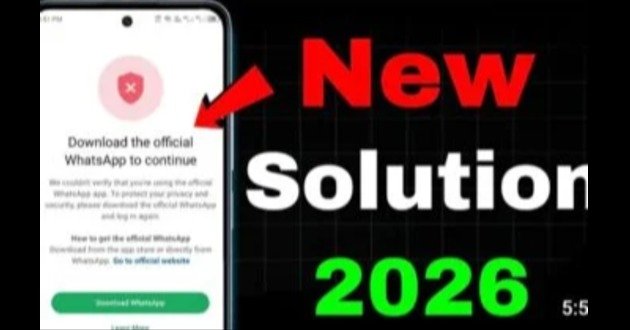
The “Download the Official WhatsApp to Continue” error can be frustrating when you suddenly lose access to your WhatsApp account. This message usually appears when WhatsApp detects that you are using an unsupported, modified, cloned, or unofficial version of the application.
The error can also appear after changing phones, restoring an account, installing WhatsApp from an unofficial source, or using a third-party app that modifies how WhatsApp works.
The good news is that this problem can often be resolved by installing the official WhatsApp application and completing the normal verification process.
What Does “Download the Official WhatsApp to Continue” Mean?
This message means WhatsApp wants you to use an official version of its application.
You may see the message when the installed application does not meet WhatsApp’s requirements.
Possible causes include:
Using a modified WhatsApp version.
Using an unofficial APK.
Using a cloned WhatsApp installation.
Installing an outdated application.
Using an altered application package.
Restoring WhatsApp through an unsupported setup.
Having corrupted application data.
WhatsApp uses security systems to identify unsupported versions and protect accounts and user data.
Why Does WhatsApp Show This Error?
There are several possible reasons.
The most common reason is an unofficial WhatsApp application.
Modified applications sometimes advertise additional features such as customized themes, hidden online status, extra privacy options, or additional account controls.
These applications are not the standard WhatsApp experience.
If WhatsApp detects an unsupported version, it may prevent you from continuing until you install an official version.
Modified WhatsApp Apps Can Cause Problems
Modified WhatsApp applications can change the normal behavior of WhatsApp.
Examples include unofficial versions that offer additional customization or privacy controls.
These applications may also create problems with:
Account verification.
Message synchronization.
Security.
Backups.
Notifications.
Updates.
Account access.
If you currently use a modified WhatsApp application, switching to the official application is the safest approach.
Cloned WhatsApp Can Trigger The Error
App-cloning tools can create a separate environment for another copy of an application.
This can be useful for managing multiple accounts, but compatibility is not guaranteed.
If WhatsApp identifies the cloned installation as unsupported, it may display the official-app message.
If this happens, remove the problematic clone and install the official application.
Unofficial APK Files
APK files are Android application installation packages.
Installing an APK manually is not automatically a problem. The important issue is where the APK comes from and whether it is the genuine application.
An APK obtained from an unknown source may have been modified.
It can also be outdated or repackaged.
For important communication apps such as WhatsApp, use a trusted official distribution method.
How To Fix Download The Official WhatsApp To Continue Error
The simplest solution is to remove the unsupported version and install the official WhatsApp application.
Follow these steps.
Open your phone’s app settings.
Find WhatsApp.
Check the application information.
If you are using a modified or cloned version, remove it.
Download the official WhatsApp application.
Install it.
Open WhatsApp.
Enter your phone number.
Complete verification.
Restore your available backup if prompted.
Try accessing your account again.
Step 1, Check Which WhatsApp Version You Are Using
First determine whether you are using the standard WhatsApp application.
Look at the application name and icon.
Check the application information from your Android settings.
If the application came from an unknown website or was installed through a modified APK package, consider replacing it.
Step 2, Back Up Your Chats
Before removing an existing WhatsApp installation, make sure your important chats and media are backed up if possible.
Open WhatsApp.
Go to Settings.
Open Chats.
Select Chat backup.
Review the latest backup information.
If you still have access to the application, create a new backup before uninstalling it.
This can help reduce the risk of losing recent conversations.
Step 3, Remove The Unsupported Application
Once your backup is secure, uninstall the unofficial or problematic WhatsApp version.
Go to Android Settings.
Open Apps.
Select the WhatsApp version you want to remove.
Tap Uninstall.
Confirm the action.
Do not delete important WhatsApp folders manually unless you understand exactly what they contain.
Step 4, Install The Official WhatsApp
Install WhatsApp through a legitimate source.
Avoid downloading a modified version simply because it promises additional features.
After installation, open WhatsApp and begin the account verification process.
Step 5, Verify Your Phone Number
Enter the phone number connected to your WhatsApp account.
WhatsApp will send a verification code.
Enter the code when requested.
Never share your verification code with another person.
If someone asks you to send the code, do not provide it.
Step 6, Restore Your Backup
If WhatsApp detects an available backup, follow the restoration instructions.
Make sure you are using the same phone number and appropriate account associated with the backup.
The availability of a backup depends on how your previous WhatsApp installation was configured.
Step 7, Restart Your Phone
If the error remains after installing the official application, restart your phone.
A restart can refresh application processes and system services.
After restarting, open WhatsApp and check whether the error has disappeared.
Clear WhatsApp Cache
If the official application is installed but still behaves incorrectly, clearing its cache may help.
Open Android Settings.
Go to Apps.
Select WhatsApp.
Open Storage.
Select Clear Cache.
Do not select Clear Data unless you understand that it can remove locally stored application information and require you to configure the application again.
Update WhatsApp
An outdated application can sometimes cause compatibility problems.
Open your device’s official app store.
Search for WhatsApp.
Check whether an update is available.
Install the latest available version.
Then restart WhatsApp.
Check Your Android Version
Older Android versions can eventually become incompatible with newer applications.
Open Settings.
Go to About Phone.
Check your Android version.
If your device supports a newer Android version, consider installing available system updates.
Check Your Internet Connection
Account verification requires a working internet connection.
Try switching between:
Wi-Fi.
Mobile data.
Another Wi-Fi network.
If your connection is unstable, wait until you have a reliable connection and try again.
Check Date And Time Settings
Incorrect device time can interfere with online services and verification.
Open Settings.
Go to Date and Time.
Enable automatic date and time.
Enable automatic time zone if available.
Restart WhatsApp and try again.
Disable Problematic Cloning Tools
If you use a cloning application, it may be responsible for the error.
Temporarily disable or remove the cloned WhatsApp installation.
Then install and use the official WhatsApp application directly.
If the official application works normally, the cloning environment may have been causing the compatibility problem.
Avoid Reinstalling Modified WhatsApp Versions
If you have already received the “Download the Official WhatsApp to Continue” message, reinstalling another modified WhatsApp version is unlikely to solve the underlying problem.
It can create the same issue again.
Use the official application instead.
What If You Need Multiple WhatsApp Accounts?
You do not necessarily need a modified WhatsApp application to manage multiple accounts.
WhatsApp supports multiple accounts within its official application.
You can add another account when the feature is available on your device and WhatsApp version.
Each account requires its own phone number.
This is a better approach than installing an unofficial modified WhatsApp version simply to manage another account.
Using Dual SIM With WhatsApp
Many modern Android phones support two SIM cards or a combination of SIM and eSIM.
This can make managing multiple WhatsApp accounts easier.
However, having multiple SIM cards does not automatically create multiple WhatsApp applications.
You still need to configure each account properly.
Why You Should Avoid Unofficial WhatsApp Apps
Unofficial WhatsApp versions can create several problems.
Account access issues.
Security concerns.
Unreliable updates.
Backup problems.
Notification problems.
Compatibility problems.
Potential privacy risks.
You also cannot assume that every feature advertised by a modified APK actually works safely.
Can The Error Cause Permanent Account Loss?
Seeing this message does not automatically mean that your account has been permanently deleted.
The message generally indicates that WhatsApp wants you to use an official application.
Switching to the official application and completing verification may resolve the issue.
If your account has a separate restriction or ban, you may need to follow the appropriate account review process.
What If Your Number Is Banned?
The official WhatsApp application and an account restriction are two different issues.
If WhatsApp displays a specific message saying your account cannot use WhatsApp, follow the instructions shown inside the application.
If an appeal option is available, use it.
Do not repeatedly switch between modified applications hoping to bypass an account restriction.
What If WhatsApp Still Shows The Error?
Try these steps in order:
Confirm that you installed the official application.
Restart your phone.
Update WhatsApp.
Clear the WhatsApp cache.
Check your internet connection.
Check your date and time.
Disable cloning tools.
Reinstall the official application.
Verify your phone number again.
If the problem continues, use WhatsApp’s official support options.
Common Mistakes To Avoid
Do not install several WhatsApp APK files from random websites.
Do not repeatedly request verification codes.
Do not share your verification code.
Do not use modified WhatsApp applications to bypass restrictions.
Do not delete backup files without checking them first.
Do not install unknown applications that claim they can unlock your WhatsApp account.
Do not give remote access to your phone to strangers.
How To Prevent The Error In The Future
Use the official WhatsApp application.
Keep it updated.
Avoid modified APKs.
Avoid unknown cloning tools.
Maintain regular backups.
Keep Android updated.
Use a secure screen lock.
Enable two-step verification.
Download applications from trusted sources.
These steps can reduce compatibility and security problems.
Benefits Of Using The Official WhatsApp
The official application provides a more reliable environment for:
Account verification.
Chat synchronization.
Updates.
Security features.
Backup and restoration.
Notifications.
Media sharing.
Calls.
Group communication.
Multiple account management where supported.
It also reduces the risk of problems caused by modified application packages.
Frequently Asked Questions
What does “Download the Official WhatsApp to Continue” mean?
It means WhatsApp has detected an unsupported or unofficial application environment and requires you to use the official WhatsApp application.
Why am I getting the official WhatsApp error?
You may be using a modified APK, cloned application, outdated installation, or another unsupported version of WhatsApp.
How do I fix the error?
Remove the unsupported version, install the official WhatsApp application, verify your phone number, and restore your backup if available.
Will uninstalling WhatsApp delete my chats?
It can remove locally stored application data. Always check your backup status before uninstalling an existing WhatsApp installation.
Can a cloned WhatsApp cause this error?
Yes. Some cloning environments may not be compatible with WhatsApp’s current requirements.
Can I use GB WhatsApp after receiving this error?
Using another modified WhatsApp version can cause the same type of problem. Use the official application instead.
Can I use multiple WhatsApp accounts without modified APKs?
Yes. WhatsApp provides an official multiple-account feature on supported versions and devices.
Do I need another phone for a second WhatsApp account?
No. WhatsApp supports multiple accounts on one phone when the required feature is available. Each account needs its own phone number.
Why does WhatsApp reject my APK?
The APK may be modified, unsupported, outdated, or installed through an environment that WhatsApp does not recognize as an official installation.
Can clearing the cache fix the problem?
It may help with certain application issues, but it will not turn an unofficial WhatsApp installation into an official one.
Should I clear WhatsApp data?
Avoid doing this unless necessary. First make sure your chats are backed up because clearing application data can remove locally stored information.
Can restarting the phone fix the error?
A restart can resolve temporary software problems, but it will not fix an unsupported WhatsApp installation by itself.
Can I fix the problem without uninstalling WhatsApp?
If you are already using the official version, you can try updating the application, clearing its cache, checking permissions, and restarting your device. If you are using an unofficial version, switching to the official application is the better solution.
Why does WhatsApp keep asking me to download the official app?
This can happen when the installed environment continues to appear unsupported. Check for cloned installations, modified versions, outdated packages, or application conflicts.
Is the official WhatsApp safer than modified versions?
Using the official application reduces the risks associated with unofficial modifications and provides access to WhatsApp’s normal update and security system.
Final Thoughts
The “Download the Official WhatsApp to Continue” error usually means that WhatsApp wants you to move away from an unsupported application environment.
The most practical solution is to secure your chat backup, remove the unofficial or problematic version, and install the official WhatsApp application. Then verify your phone number and restore your available backup.
If you need multiple accounts, consider WhatsApp’s official multiple-account feature or supported Android features instead of relying on modified WhatsApp applications.
Keeping WhatsApp and Android updated can also help prevent compatibility problems in the future.



