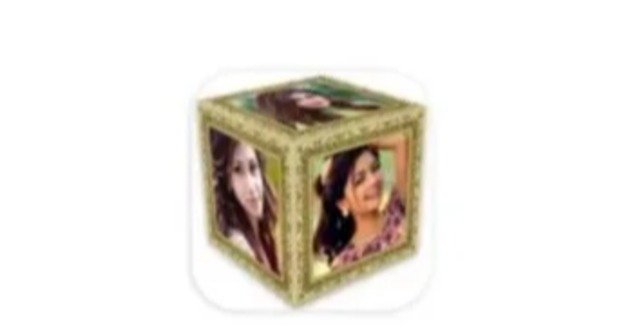
3D Photo Cube Wallpaper is a creative way to turn your Android phone screen into a personalized and animated display. Instead of using a normal static wallpaper, you can place your favorite photographs on the sides of a rotating three dimensional cube. The cube can move, rotate, respond to touch, and appear with different backgrounds and visual effects.
This type of wallpaper is useful for people who want to display family photographs, couple pictures, travel memories, pets, personal artwork, logos, or other favorite images directly on their home screen. Several Android photo cube wallpaper applications provide options for adding multiple pictures, changing the cube size, controlling rotation speed, selecting backgrounds, applying frames, and setting the result as a live wallpaper. (Google Play)
Some newer versions also provide additional 3D shapes, automatic wallpaper changes, multiple cubes, interactive controls, and different visual effects. This gives users more control over the appearance of their phone screen. (Google Play)
This complete guide explains 3D Photo Cube Wallpaper, its features, benefits, customization options, setup process, photo selection tips, performance considerations, creative uses, common problems, and practical ways to create an attractive personalized screen.
What Is 3D Photo Cube Wallpaper?
3D Photo Cube Wallpaper is an animated wallpaper that displays photographs on a three dimensional cube.
A traditional wallpaper uses one image as the background. A 3D photo cube uses several images and places them on different sides of a virtual cube.
As the cube rotates, you can see different photographs.
For example, you can use six photographs for a six sided cube.
You could add:
A family photograph.
A personal portrait.
A travel photograph.
A pet photograph.
A favorite landscape.
A memorable event.
Some applications allow you to use fewer than six photographs and repeat or leave certain sides depending on the available settings. Current Android applications commonly support selecting multiple images from the gallery and applying them to the cube. (Google Play)
How 3D Photo Cube Wallpaper Works
The application creates a virtual three dimensional cube on your screen.
You select photographs from your phone gallery.
The application places those photographs onto the cube surfaces.
The cube then rotates according to your selected settings.
You can often control:
Rotation speed.
Direction.
Cube size.
Position.
Touch interaction.
Background.
Frames.
Effects.
After customization, you set the finished design as your live wallpaper.
The result appears on your home screen as an animated background rather than a static image.
Why Use A 3D Photo Cube Wallpaper?
A phone screen is something you look at many times throughout the day.
A personalized wallpaper gives it a more individual appearance.
A 3D cube can be useful if you want to display several photographs without creating a traditional collage.
It can also provide movement and interaction.
Instead of seeing one image every time you unlock your phone, you can see different images as the cube rotates.
This makes the wallpaper more dynamic.
Main Features Of 3D Photo Cube Wallpaper
The exact features depend on the application you use.
Common features include:
Multiple photo support.
Gallery integration.
Camera support in some versions.
3D cube animation.
Adjustable cube size.
Adjustable rotation speed.
Rotation direction.
Touch controls.
Custom backgrounds.
Photo cropping.
Photo frames.
Text overlays.
Visual effects.
Multiple cubes.
Animated backgrounds.
Live wallpaper support.
Some newer applications also provide other 3D shapes such as spheres, pyramids, cylinders, diamonds, and torus shapes. (Google Play)
Multiple Photo Support
One of the main advantages of a photo cube is the ability to display multiple images.
A standard cube has six sides.
You can therefore create a collection of photographs that rotate through the display.
For example:
Side 1: Family photo.
Side 2: Travel photo.
Side 3: Favorite person.
Side 4: Pet photo.
Side 5: Nature photo.
Side 6: Personal artwork.
Some applications advertise support for one to six photographs. (APKPure.net)
Gallery Photo Selection
Most photo cube applications allow you to select photographs from your phone gallery.
This means you do not need to create new images specifically for the wallpaper.
You can use existing photographs stored on your device.
Choose images with good resolution and clear subjects.
This usually produces a better looking cube.
Camera Support
Some applications allow you to take a new photograph directly through the application.
This can be useful if you want to create a wallpaper using a recent selfie, family photograph, pet picture, or another subject.
The exact camera features depend on the application.
3D Cube Rotation
Rotation creates the main animated effect.
The cube continuously turns so that different photographs become visible.
You may be able to choose the direction.
For example, the cube can rotate:
Left.
Right.
Clockwise.
Counterclockwise.
Some applications also allow different movement patterns. (Google Play)
Rotation Speed Control
A fast rotating cube can look energetic.
A slower rotation can look cleaner and easier to view.
Most applications provide a speed setting.
Start with a moderate speed.
Then adjust it according to your preference.
If the cube rotates too quickly, photographs may become difficult to appreciate.
If it rotates too slowly, the animation may feel less dynamic.
Cube Size Adjustment
The cube does not always need to occupy the entire screen.
You can adjust its size.
A smaller cube can leave more space for the background.
A larger cube creates a stronger visual effect.
Choose the size according to your phone’s screen dimensions.
Cube Position
Some applications allow you to move the cube around the screen.
You can place it:
In the center.
Near the top.
Near the bottom.
Toward the left.
Toward the right.
Position control gives you more freedom when combining the cube with a custom background.
Touch Interaction
Some 3D cube wallpapers support touch interaction.
You may be able to touch or swipe the screen to influence the cube’s movement.
This makes the wallpaper feel more interactive.
The exact touch behavior varies by application.
Some versions allow users to turn touch interaction off. (APKPure.net)
Custom Backgrounds
The background surrounding the cube can have a major effect on the overall appearance.
Many applications provide built in backgrounds.
Some allow you to choose your own image.
You can use:
Plain colors.
Nature scenes.
Space backgrounds.
Abstract designs.
Gradient backgrounds.
Personal photographs.
Dark backgrounds.
Bright backgrounds.
A simple background often works best because it keeps attention on the cube.
Photo Frames
Frames can be applied around photographs.
This can make the cube look more decorative.
Depending on the application, you may find:
Simple borders.
Colorful frames.
Classic frames.
Decorative frames.
Modern frames.
Choose a frame that matches your photographs.
Avoid using a complicated frame when the image itself already contains many details.
Photo Cropping
Different photographs have different dimensions.
One image might be square.
Another might be horizontal.
Another might be vertical.
Cropping helps fit the photograph into the cube surface.
Use cropping to keep the important part of the image visible.
For portraits, keep the face near the center.
For landscapes, preserve the main subject.
Photo Effects
Some applications provide basic photo effects before placing the image on the cube.
These may include:
Brightness.
Contrast.
Grayscale.
Blur.
Vintage effects.
Color effects.
Vignette.
The exact options depend on the application.
Some newer photo cube applications advertise effects such as brightness, blur, vignette, grayscale, and scaling options. (Google Play)
Text On Photos
Some applications allow you to add text to photographs before using them on the cube.
You can add:
Names.
Dates.
Quotes.
Short messages.
Event names.
Personal slogans.
For example, a family cube could contain the names of family members.
A business cube could display a logo and company name.
Multiple Cubes
Some applications support multiple cubes on the same wallpaper.
You could create several small cubes instead of one large cube.
This can create a more complex visual design.
However, multiple animated objects can require more processing power.
Use this feature carefully on older phones.
3D Shapes Beyond The Cube
The cube is only one possible 3D shape.
Some newer applications offer several shapes, including:
Cube.
Sphere.
Pyramid.
Cylinder.
Diamond.
Torus.
The availability of these shapes varies between applications and may depend on free or premium versions. (Google Play)
Automatic Wallpaper Changing
Some modern applications also combine 3D wallpapers with automatic wallpaper changing.
Instead of keeping one set of photographs permanently, you can select an album and allow the application to change the wallpaper at selected intervals.
Possible schedules include:
Every few minutes.
Every hour.
Daily.
Other custom intervals.
This can keep the phone display fresh without manually changing the wallpaper. (Google Play)
Home Screen Personalization
The home screen is one of the most visible parts of your phone.
A 3D photo cube can make it more personal.
You can choose photographs that represent:
Family.
Friends.
Travel.
Education.
Career.
Hobbies.
Sports.
Pets.
Creative work.
The result becomes more personal than using a generic wallpaper.
3D Photo Cube For Family Photos
Family photographs are one of the most suitable uses.
You can select several family photographs and place them on the cube.
As the cube rotates, different memories appear.
This gives you a simple way to keep several favorite photographs visible.
3D Photo Cube For Couples
Couples can use photographs from different moments.
For example:
First meeting.
Travel memory.
Birthday.
Wedding.
Special event.
Favorite photograph.
A rotating cube can combine these photographs into one personalized wallpaper.
3D Photo Cube For Children
Parents can create a cube using children’s photographs.
You can use different photographs from birthdays, school events, family trips, or everyday moments.
Choose clear photographs with good lighting.
3D Photo Cube For Pets
Pet owners can create a wallpaper using photographs of their dogs, cats, birds, or other pets.
A cube allows you to display several pet photographs at once.
You can also use a colorful or simple background depending on the photographs.
3D Photo Cube For Travel Memories
Travel photographs can create an attractive rotating wallpaper.
You can use photographs from:
Mountains.
Beaches.
Cities.
Historical places.
Road trips.
Family vacations.
The cube can become a small collection of travel memories.
3D Photo Cube For Students
Students can use a cube to display:
Graduation photographs.
Class photographs.
Friends.
Academic achievements.
Favorite quotes.
School memories.
It can also provide a personalized look for an otherwise ordinary phone screen.
3D Photo Cube For Teachers
Teachers can use the concept creatively.
A teacher might create a cube using:
Classroom photographs.
Science diagrams.
Motivational quotes.
School events.
Educational images.
Personal photographs.
For professional use, choose appropriate images and keep the design simple.
3D Photo Cube For Businesses
Businesses can use photo cube wallpapers for branding.
You can place:
Company logo.
Product photograph.
Brand slogan.
Contact information.
Team photograph.
Service images.
A business presentation can also use a 3D cube effect to make product visuals more interesting.
3D Photo Cube For Content Creators
Content creators can use personalized cube wallpapers for videos and screenshots.
For example, a creator can use a cube containing their profile picture, logo, social media identity, and brand graphics.
This can help create a consistent visual identity.
Benefits Of 3D Photo Cube Wallpaper
The main benefit is personalization.
Other benefits include:
Displays multiple photographs.
Creates animated movement.
Provides interactive features.
Offers customization.
Supports different backgrounds.
Allows rotation control.
Can use personal photographs.
Can create unique home screens.
Provides an alternative to static wallpapers.
Some applications also support offline use, although this depends on the specific app. (Google Play)
Easy To Customize
You do not need advanced graphic design skills.
Most applications use simple controls.
Select photographs.
Choose effects.
Adjust the cube.
Select the background.
Set the wallpaper.
The process is designed for mobile users.
Displays Several Memories
A normal wallpaper usually displays one photograph.
A cube can display several.
This makes it useful for users who cannot decide which photograph to choose.
You can create a small rotating album directly on your home screen.
Interactive Experience
Touch interaction can make the wallpaper more engaging.
Instead of simply watching the cube rotate, you may be able to interact with it.
This provides a different experience from a static background.
Unique Screen Appearance
Millions of phones use ordinary wallpapers.
A personalized 3D cube can make your device look different.
You can combine your photographs with backgrounds, frames, effects, and motion.
Potential Battery Impact
Live wallpapers continuously animate content.
This can require additional processing compared with a static wallpaper.
The actual battery impact depends on:
Phone hardware.
Application optimization.
Animation speed.
Screen brightness.
Refresh rate.
Number of animated objects.
Background effects.
Some applications specifically advertise battery optimization, but results vary between devices. (Google Play)
If you notice increased battery consumption, reduce animation intensity or switch to a static wallpaper.
Performance On Older Phones
Older Android phones may struggle with complex 3D animations.
You might experience:
Lag.
Slow movement.
Frame drops.
Battery drain.
Application crashes.
Use a smaller cube.
Reduce the animation speed.
Disable unnecessary effects.
Use one cube instead of multiple cubes.
How To Create A 3D Photo Cube
The setup process is generally straightforward.
Open the application.
Select the photo cube option.
Choose photographs from your gallery.
Crop the images.
Apply frames or effects.
Choose a background.
Adjust the cube size.
Set the rotation speed.
Choose the rotation direction.
Enable or disable touch interaction.
Preview the result.
Select the live wallpaper option.
Apply it to your home screen.
The exact menu names can differ between applications.
How To Choose The Best Photos
Use photographs with good lighting.
Avoid extremely blurry images.
Choose images where the main subject is clearly visible.
Try to use photographs with similar visual quality.
For portraits, select clear faces.
For landscapes, choose images with strong composition.
For family photographs, make sure important faces are not cropped.
Best Photo Dimensions
Square photographs can often work well because cube surfaces have a square shape.
If your image is rectangular, crop it carefully.
Do not stretch the image unnecessarily.
Stretching can distort faces and objects.
Cropping usually produces a better result.
How To Make The Cube Look Professional
Use photographs with a consistent style.
Choose a simple background.
Use moderate rotation.
Avoid too many frames.
Keep text short.
Use high quality images.
Keep the cube at a comfortable size.
A clean design usually looks better than one containing too many effects.
Dark Theme 3D Cube
A dark background can make photographs stand out.
It can also create a more modern appearance.
Dark backgrounds are particularly suitable for:
Night photographs.
Portraits.
Gaming themes.
Space images.
Black and white photography.
Minimal designs.
Colorful 3D Cube
Bright backgrounds can create a playful appearance.
This works well for:
Children’s photographs.
Birthday memories.
Travel images.
Colorful artwork.
Festival photographs.
Choose colors that do not overpower the photographs.
3D Cube For AMOLED Displays
Phones with AMOLED screens can display dark backgrounds effectively.
A mostly black background may also help reduce power consumption on some OLED based displays compared with bright backgrounds, although the overall battery impact still depends on the wallpaper animation and phone settings.
Common Problems With 3D Photo Cube Wallpaper
Users can experience different problems.
Common issues include:
Wallpaper not appearing.
Photographs not updating.
Cube rotating too quickly.
Cube not responding to touch.
Background changing unexpectedly.
Wallpaper disappearing.
Application crashing.
High battery consumption.
Images appearing distorted.
These problems can have different causes.
Photos Not Appearing
If your photographs do not appear:
Check gallery permissions.
Select the photographs again.
Restart the application.
Check whether the images are stored locally.
Try a different photograph.
Avoid moving or deleting the selected images after setup.
Wallpaper Disappears
Some users report live wallpaper stability issues.
For example, one current 3D cube wallpaper listing includes a user review describing the wallpaper disappearing after several minutes. (Google Play)
If this happens, try:
Restarting the phone.
Reapplying the wallpaper.
Checking battery optimization settings.
Updating the application.
Reducing animation complexity.
Cube Does Not Rotate
Check whether rotation is enabled.
Increase the rotation speed.
Disable touch mode if it conflicts with automatic movement.
Reapply the live wallpaper.
Restart the device if necessary.
Touch Controls Not Working
Check whether touch interaction is enabled.
Some applications allow you to turn touch controls off.
The behavior can also depend on your phone’s launcher and Android version.
Battery Drains Quickly
Reduce the rotation speed.
Use one cube.
Disable extra effects.
Use a simple background.
Reduce screen brightness.
If the problem continues, switch to a static wallpaper.
Application Crashes
Make sure the application is compatible with your Android version.
Clear the application cache.
Restart your device.
Update the application.
If the problem continues, use another compatible wallpaper application.
Privacy Considerations
Photo cube applications may need access to photographs so that you can select images from your gallery.
Review the permissions before granting access.
You should understand what the application can access.
Privacy practices vary between applications. For example, one current photo cube application declares that it collects no data, while another current application declares collection of device or other IDs. (Google Play)
Do not assume that every photo cube application follows the same privacy practices.
Protect Your Personal Photos
If you use private family photographs, check the application’s privacy information.
Prefer applications with clear privacy explanations.
Avoid giving unnecessary permissions.
Review permissions after installation.
If you no longer use the application, consider removing it and reviewing its remaining permissions.
3D Photo Cube Wallpaper And Offline Use
Some photo cube applications advertise offline functionality.
Offline operation can be useful because the wallpaper does not need continuous internet access for basic animation.
However, not every application works offline.
Some may require internet access for advertisements, updates, cloud features, or other functions.
Check the individual application’s behavior.
Free And Premium Features
Some 3D photo cube applications are free.
Others provide optional premium features.
For example, a current photo cube application offers the cube as a free shape while placing additional 3D shapes and some advanced customization features behind premium access. (Google Play)
Before subscribing, check which features you actually need.
3D Photo Cube Versus Static Wallpaper
A static wallpaper is simple.
It uses less processing power.
It usually requires less battery.
A 3D photo cube provides:
Animation.
Multiple images.
Interaction.
Customization.
Movement.
The choice depends on your priorities.
If battery life is your main concern, static wallpaper may be better.
If personalization is more important, a 3D cube can provide a more interesting experience.
3D Photo Cube Versus Photo Collage
A photo collage displays several photographs at once in a flat layout.
A 3D cube displays photographs on different surfaces and rotates them.
A collage is easier to view at once.
A cube provides more movement and depth.
Both options can personalize your phone.
Practical Tips For Better Results
Use high quality photographs.
Crop images carefully.
Keep the cube size moderate.
Use a simple background.
Set a comfortable rotation speed.
Avoid excessive effects.
Test touch controls.
Monitor battery usage.
Check privacy permissions.
Preview the wallpaper before applying it permanently.
These small adjustments can make a significant difference.
Frequently Asked Questions
What Is 3D Photo Cube Wallpaper?
It is a live wallpaper that places photographs on a virtual three dimensional cube and displays the cube with rotation and other visual effects.
How Many Photos Can I Add?
Many applications support up to six photographs, corresponding to the six sides of a cube. Some applications may support fewer or additional display arrangements. (APKPure.net)
Can I Use My Own Photos?
Yes. Many 3D photo cube applications allow you to select photographs from your phone gallery. (Google Play)
Can I Change The Rotation Speed?
Yes. Rotation speed is a common customization option.
Can I Change The Cube Size?
Yes. Many applications provide size controls.
Can I Move The Cube?
Some applications allow you to change the position of the cube on the screen.
Can I Control The Cube With Touch?
Some applications provide touch interaction that allows you to influence the cube’s movement.
Can I Change The Background?
Yes. Many applications provide multiple background options, and some allow custom backgrounds. (Google Play)
Can I Add Frames?
Many photo cube applications provide decorative frames for photographs.
Can I Add Text?
Some applications allow text to be added to photographs before applying them to the cube.
Can I Use A Family Photo?
Yes. Family photographs are a common use for personalized photo cube wallpapers.
Can I Use Pet Photos?
Yes. You can use photographs of dogs, cats, birds, and other pets.
Does It Work On Android Phones?
3D photo cube live wallpapers are designed primarily for Android devices. Compatibility depends on the application and Android version.
Does A 3D Wallpaper Consume More Battery?
It can consume more power than a static wallpaper because it continuously renders animation. The impact depends on the application and device.
Can I Use Multiple Cubes?
Some applications support multiple cubes or multiple shapes. (Google Play)
Can I Use A Custom Background?
Some applications allow you to select a custom background from your gallery.
Can I Use Other 3D Shapes?
Some newer applications provide shapes such as spheres, pyramids, cylinders, diamonds, and torus designs in addition to cubes. (Google Play)
Why Are My Photos Distorted?
The photographs may have an unsuitable aspect ratio or may have been stretched during processing. Crop the image correctly before applying it.
Why Does The Wallpaper Lag?
The device may not have enough resources for complex animation. Reduce the number of objects, effects, or animation intensity.
Can I Use A 3D Cube On The Lock Screen?
Some applications or Android versions may support the lock screen, while others are limited to the home screen. The available options depend on the device and application.
Is A 3D Photo Cube Better Than A Normal Wallpaper?
It depends on your needs. A 3D cube provides movement and customization, while a static wallpaper offers simplicity and usually lower resource usage.
Can I Use A 3D Cube For Business Branding?
Yes. You can use logos, product photographs, and brand graphics if the application supports them.
Can I Use It Without Internet?
Some applications advertise offline functionality. Others may need internet access for certain features. Check the specific application’s behavior.
Final Thoughts
3D Photo Cube Wallpaper provides an interesting way to personalize an Android screen using your own photographs. Instead of placing one static image behind your apps, you can create an animated three dimensional cube that displays multiple photographs as it rotates.
The main attraction is customization. You can select personal photographs, adjust the cube size, change rotation speed, choose different backgrounds, add frames, apply effects, and sometimes interact with the cube through touch controls.
You can use the concept for family memories, couple photographs, pets, travel pictures, school memories, professional branding, gaming designs, and personal artwork.
The quality of your photographs matters. Clear images with good lighting generally produce better results. Cropping is also important because the photographs need to fit naturally on the cube surfaces.
You should also consider performance and privacy. Live wallpapers continuously animate, so they may consume more resources than static wallpapers. If your battery drains quickly or the phone becomes slow, reduce the animation settings or switch to a static background.
Privacy practices also differ between applications. Review permissions and data practices before selecting an app for your personal photographs.
When configured properly, a 3D Photo Cube Wallpaper can give your phone a distinctive appearance while allowing you to keep several favorite photographs visible in an animated and interactive format.



